> ## Documentation Index
> Fetch the complete documentation index at: https://docs.modo.link/llms.txt
> Use this file to discover all available pages before exploring further.
# Transaction Execution
A transaction is an instance of calling a specific module of a package (equivalent to a smart contract on Sui) to execute a particular function.
There are several ways you can run a transaction:
1. using the interface of your wallet;
2. using [**CLI**](https://docs.sui.io/references/cli/client "https://docs.sui.io/references/cli/client");
3. executing a transaction using a special feature directly on Suiscan.
To execute a transaction via Suiscan, follow these steps:
## Step 1. Go to the [package details page](https://suiscan.xyz/mainnet/object/0xe09b37505173ae119a0ae3b1fdf9050a6b029391f9d9f10a3fff27e3f3115727 "https://suiscan.xyz/mainnet/object/0xe09b37505173ae119a0ae3b1fdf9050a6b029391f9d9f10a3fff27e3f3115727").
If the package is verified, it will have the **Verified** tag. For more information on package verification, go [here](https://dash.readme.com/project/blockberry/v1.0/docs/contract-verification "https://dash.readme.com/project/blockberry/v1.0/docs/contract-verification").
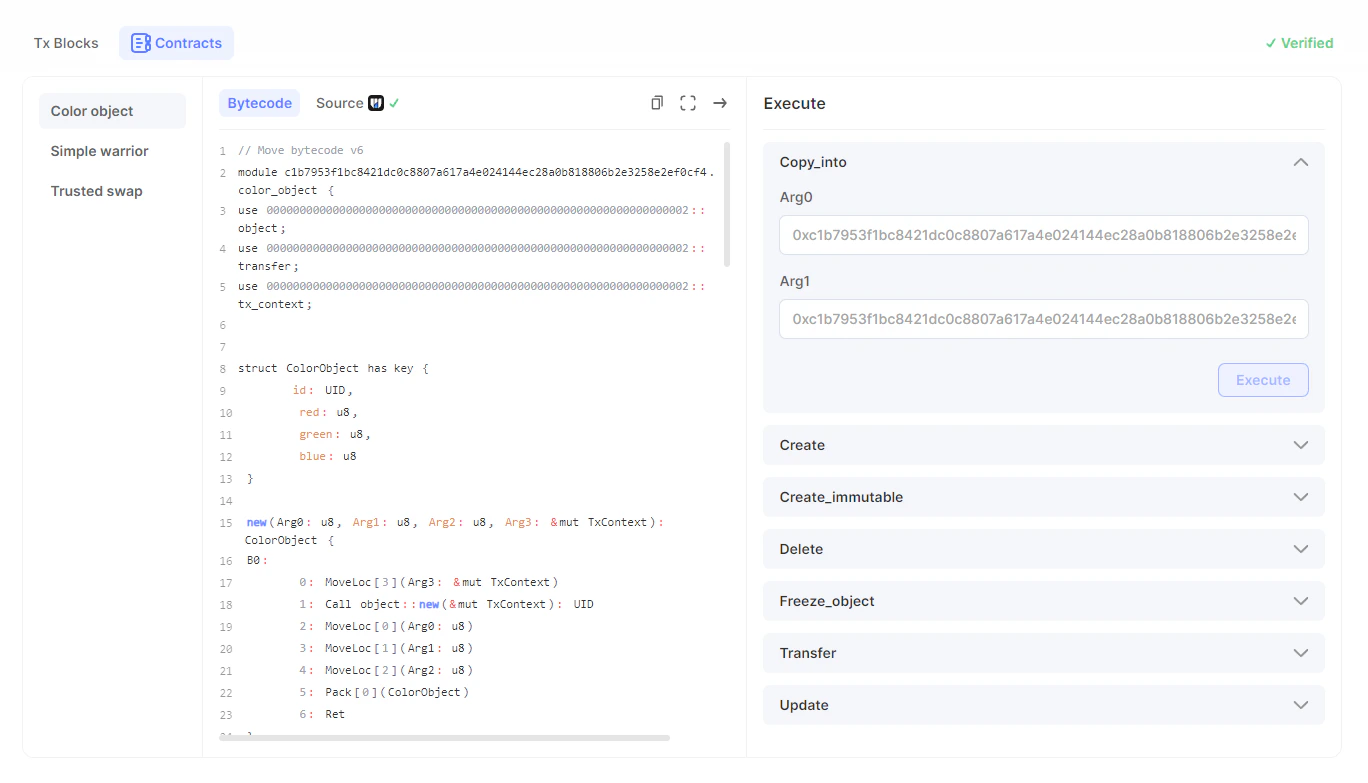 1.1. On the left side of the screen, you can see a list of modules. Select the module containing the function or functions you want to execute. In the middle of the page, you can see the source code for the selected module of the package.
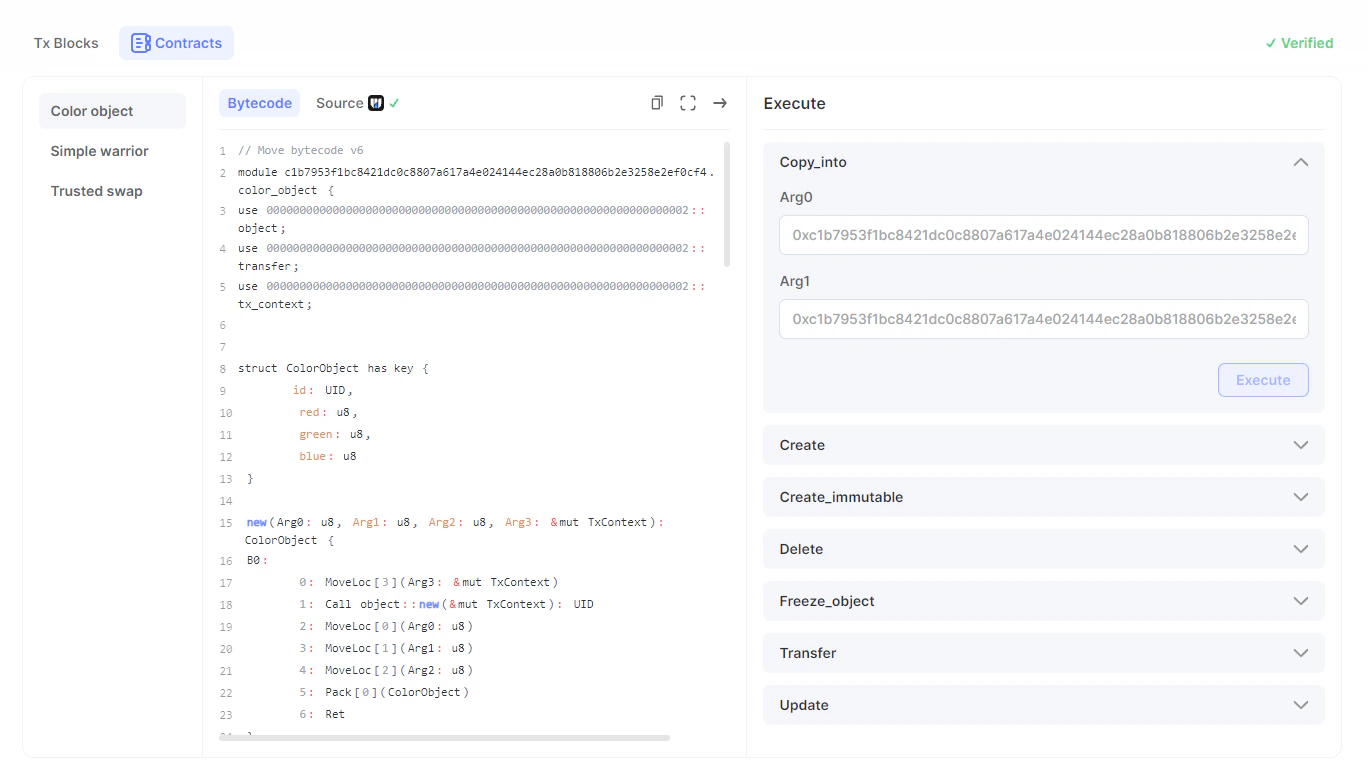 1.2. On the right side of the screen, you can see a list of functions the selected module can execute. Click on the function you want to execute, fill in the fields, and click the Execute button.
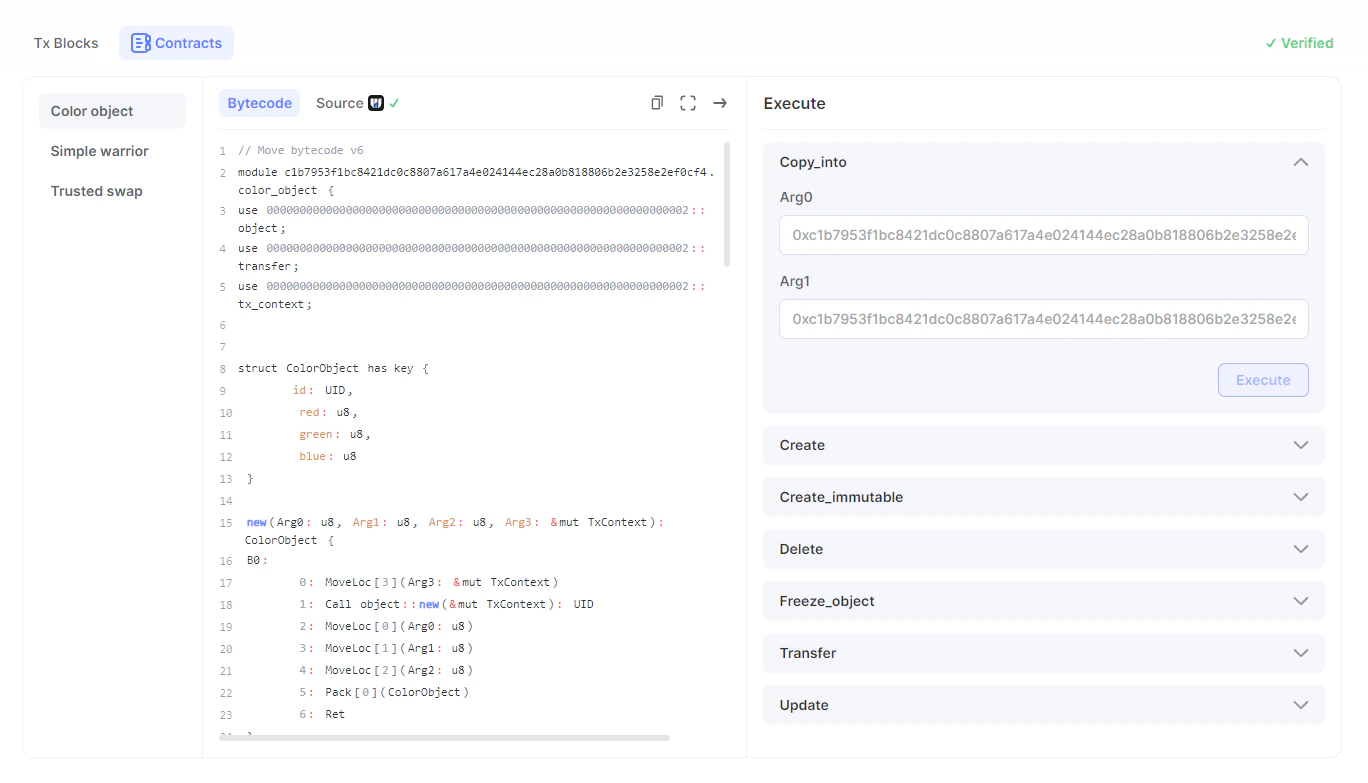 Make sure your wallet is connected. If not, connect your wallet.
## Step 2. View the result of transaction execution.
Make sure your wallet is connected. If not, connect your wallet.
## Step 2. View the result of transaction execution.
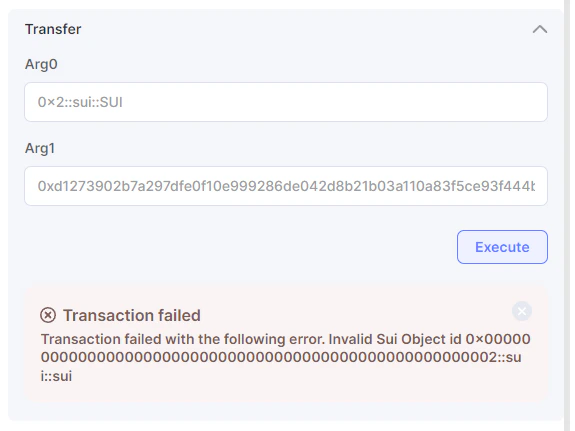
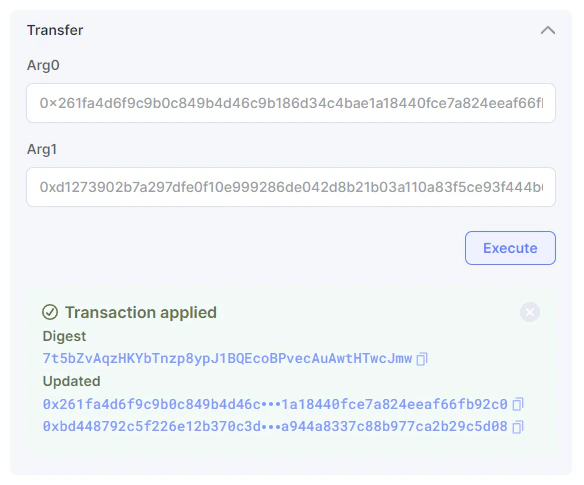 Please make sure you enter the correct values in the fields and that you have sufficient funds to cover the transaction fees. Otherwise, the transaction will fail.